Removing backgrounds from videos has become one of the most popular editing techniques for creators who want professional-looking content without expensive software.
Whether you’re making YouTube videos, TikTok clips, Instagram reels, or educational content, background removal helps you replace dull scenes with eye-catching visuals and creative environments. Fortunately, apps like CapCut have made this process simple and accessible for beginners.
With powerful AI tools and built-in editing features, CapCut allows users to remove backgrounds from videos and images in just a few taps, no green screen or advanced skills required. From automatic background removal to chroma key editing and cutout tools, the platform offers multiple methods that suit different editing needs and skill levels.
In this complete beginner-to-pro guide, you’ll learn how to remove backgrounds in CapCut step by step, explore different removal methods, discover pro tips for cleaner results, and troubleshoot common issues. By the end of this guide, you’ll be able to create polished, studio-style videos directly from your phone or PC.
What Does Background Removal Mean in Video Editing
Background removal simply means separating the subject (you, an object, or a character) from the original background.
Think of it like cutting out a sticker from paper — except here, the sticker is a moving video.
Background removal vs green screen
- Background removal (AI cutout): No green screen needed. AI detects the subject automatically.
- Green screen removal: Requires a green backdrop and chroma key tool.
Both methods work inside CapCut, but AI cutout is the game-changer for beginners.
Use cases for creators
- Reaction videos
- Face-cam overlays
- Virtual presentations
- Gaming content
- Meme edits
Key Features of CapCut Background Removal Tool
- Auto Cutout: AI detects human subjects and removes backgrounds instantly.
- Chroma Key: Classic green screen removal for professional compositing.
- AI Background Remover: Works even in complex environments, such as rooms or outdoor scenes.
Requirements Before Removing Background in CapCut
Before jumping into editing, properly prepare your footage.
Device compatibility
- Android & iOS smartphones
- Windows & Mac desktop
- Online browser editor
Video quality tips
- Shoot in good lighting
- Avoid busy backgrounds
- Use stable camera framing
Good footage makes the AI cutout dramatically better.
Step-by-Step Guide to Remove Background in CapCut (Mobile)
Let’s start with the most common method — using CapCut on your phone.

Step 1: Import video
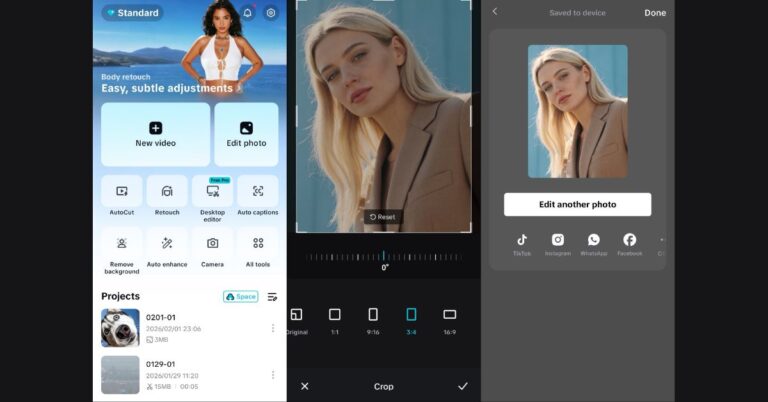
- Open CapCut → Tap New Project → Select your video.
Step 2: Select clip
- Tap the clip in the timeline to reveal editing tools.
Step 3: Apply Remove Background
- Scroll tools → Tap Remove Background → Choose Auto Remove.
- CapCut will process your clip in seconds.
- Boom — subject isolated.
Step-by-Step Guide to Remove Background in CapCut (PC/Desktop)
Desktop users get even more control.
Step 1: Upload media
- Import video into the timeline.
Step 2: Use Auto Cutout
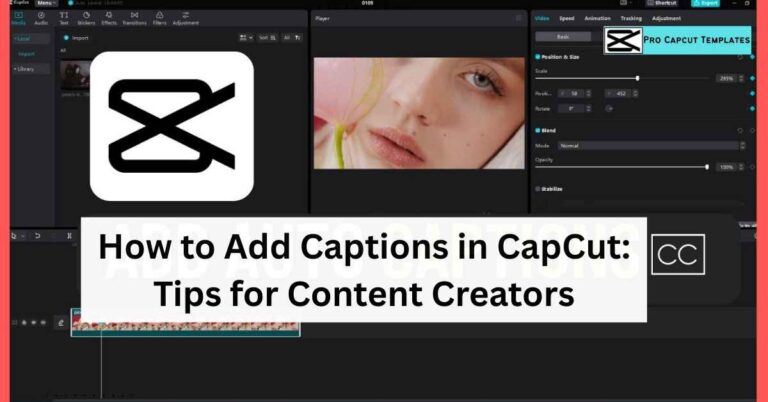
- Select clip → Right panel → Auto Cutout → Apply.
Step 3: Export
- Add new background → Export final video.
- The desktop version is ideal for longer edits.
How to Remove Background Without Green Screen
This is where CapCut shines.
AI cutout workflow
- Import clip
- Apply remove background
- Fine-tune edges
Best footage practices
- Clear subject separation
- Strong lighting contrast
- Minimal motion blur
Think of AI as a smart pair of scissors — give it clarity, and it cuts perfectly.
How to Remove Green Screen Background Using Chroma Key
If you recorded with a green screen:
Add overlay
- Place the green screen video above background.
Apply chroma key
- Select overlay → Chroma Key → Pick green color.
Adjust intensity
- Increase strength until green disappears.
- Classic Hollywood trick — now in your pocket.
How to Change the Background After Removing It
Removing background is only half the story.
Adding image background
- Import image → Place below the subject.
Adding a video background
- Use motion clips for cinematic effect.
- This transforms simple edits into immersive scenes.
Tips for Cleaner Background Removal
Lighting
- Bright, even lighting prevents AI confusion.
Contrast
- Different clothing color from the background helps.
Camera stability
- Tripods improve detection accuracy.
- Small adjustments = huge visual difference.
Common Background Removal Problems and Fixes
Hair edges issues
- Use the edge refine tool or blur the background slightly.
Flickering
- Split clip and reapply cutout.
Low-resolution clips
- Upscale or reshoot if possible.
- Editing is troubleshooting; every creator learns this fast.
Creative Ideas After Removing the Background
Reaction videos
- Overlay yourself onto viral clips.
Gaming edits
- Add a face cam without bulky frames.
Educational reels
- Place the presenter over the slides.
- Background removal = creativity multiplier.
CapCut Background Removal vs Other Apps
Many editors offer cutout features, but CapCut stands out because:
- Free AI cutout
- Fast processing
- Beginner-friendly UI
- Cross-platform workflow
It’s like comparing a pocket knife to a multitool.
Is CapCut Background Removal Free
Yes, the core remove background feature is free.
However, a Pro subscription may include:
- Premium backgrounds
- Advanced effects
- Cloud storage
But for most creators, the free version is more than enough.
Conclusion
Removing backgrounds in CapCut is no longer a complicated, professional-only task. Thanks to AI cutout and chroma key tools, anyone from beginners to experienced editors can isolate subjects and build visually stunning videos within minutes.
Whether you’re making TikTok clips, YouTube shorts, gaming content, or educational reels, mastering background removal unlocks a new level of storytelling. The process is simple: import, cutout, replace background, and refine.
The real magic happens when you combine technical skills with creativity. Experiment with moving backgrounds, cinematic overlays, and lighting effects. With practice, background removal won’t just be an editing trick — it’ll become a creative superpower.
Frequently Asked Questions
1. Can CapCut remove the background automatically?
Yes, CapCut offers AI Auto Cutout that detects subjects and removes backgrounds instantly.
2. Do I need a green screen for CapCut background removal?
No. AI cutout works without green screen, but chroma key is available if you use one.
3. Why is my CapCut background removal blurry?
This usually happens due to low video resolution or poor lighting during recording.
4. Can I remove the background from photos in CapCut?
Yes, CapCut also supports background removal for images using the same AI feature.
5. Is CapCut background removal available on PC?
Yes, both desktop and online versions include auto cutout tools.