How to Combine MP3 Files for Effortless Playback: An MP3 file is one of the most widely used audio formats for music, podcasts, audiobooks, and other sound recordings. It reduces file size through compression while maintaining good sound quality.
There are times when you may need to join multiple MP3 files into a single, longer track. For instance, content creators might combine several podcast episodes into one file, musicians may merge different songs, and educators could connect lecture recordings for smoother playback. Audiobooks are also often merged to create a seamless listening experience.
In this article, you’ll discover easy and practical steps to join MP3 files, helping you create a smooth and continuous audio track for any project.
How to combine multiple MP3 files into one on Windows
There are several software programs available for merging MP3 files on Windows. Some are completely free, while others come with premium features at a cost. These tools allow you to quickly combine multiple audio tracks into a single file with minimal effort. You can select the option that best fits your needs, depending on the features, ease of use, and level of control you require.
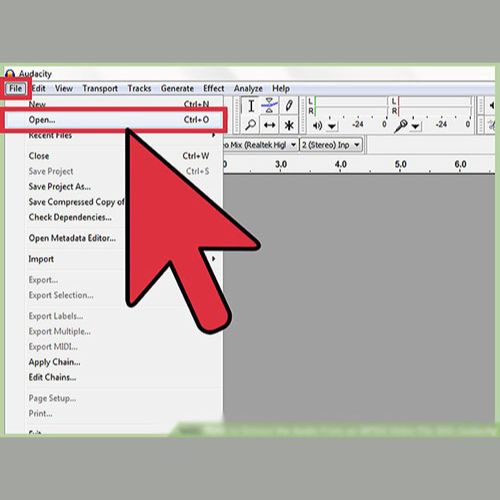
CapCut desktop video editor
CapCut desktop video editor is a powerful tool that makes it easy to combine multiple MP3 files into one seamless audio track. Its user-friendly interface allows users to quickly merge, edit, and enhance audio, making it suitable for both beginners and experienced editors. In addition, the software offers advanced features such as precise cutting, trimming, and audio adjustments, ensuring a polished and high-quality final result.
Key features
- Easily merge two audio files
With the video merger feature in CapCut, you can quickly combine multiple video clips or MP3 files into a single, seamless track.
- Instant noise reduction
You can easily eliminate background noise from your audio to achieve clear, high-quality sound.
- Fade in/out with a single click
By applying a fade-in and fade-out effect, you can create smooth transitions between tracks and give your audio a polished, professional finish.
- Isolate vocals from the audio
The vocal remover allows you to separate vocals from music, giving you greater flexibility for customized audio edits.
- Efficient voice enhancement
With CapCut, you can enhance voice clarity and effortlessly improve the overall quality of your audio.
How to merge two MP3 files in CapCut
If you haven’t installed CapCut yet, click the button below to download and set it up on your device. Once installed, follow the detailed step-by-step guide to learn how to merge MP3 files easily.
1: Upload the audio
Click the “Upload Files” button to select and upload the MP3 files you want to merge.
2: Arrange and merge files
Drag the MP3 files onto the timeline in the desired order. After arranging them properly, merge them into a single, continuous track.
3: Export the combined MP3
Once the MP3 files are merged, click “Export” to save your new combined track. Select your desired format and quality settings before finalizing.
How to merge MP3 files on Android
Several Android apps let you merge MP3 files directly on your phone. These apps are user-friendly and make it easy to combine multiple audio tracks. Pick the one that suits your needs and start merging right away.
MP3 Audio Merger and Joiner
MP3 Audio Merger and Joiner is an intuitive Android app that makes combining MP3 files simple and quick. With just a few taps, you can merge audio tracks, rearrange their order, and make basic edits to improve your sound. The app is designed to offer a seamless experience for users looking to join files in various formats without any complications.
Key features
- Easily merge multiple MP3 files into one.
- Rearrange MP3 files in the desired order.
- Simple and easy-to-use interface.
- No internet connection is needed to merge files.
- Supports different MP3 file sizes and formats.
How to combine MP3 files into one with an MP3 audio merger
Before you begin, make sure the MP3 Audio Merger app is installed on your device. This easy-to-use app lets you merge MP3 files quickly. Follow these three simple steps to learn how to combine two MP3 tracks effortlessly.
1: Open the app and add MP3 files
Launch the MP3 Audio Merger app and tap “Add Files” to select the MP3 tracks you want to combine. Pick your files and add them to the app.
2: Arrange the MP3 files
After adding the files, drag them to arrange in your preferred order.
3: Merge and save
Once the files are arranged, tap “Merge” to join them into a single track. After the process is complete, save the merged file to your device.
How to merge MP3 files on iPhone
Several online tools allow you to merge MP3 files directly on your iPhone. These browser-based tools are simple to use and let you combine audio tracks without installing an app. Here, we’ve highlighted one of the top audio mergers for iPhone users.
Handy Audio Editor
Handy Audio Editor is a versatile and user-friendly audio editing app that makes merging MP3 files simple. It allows you to combine multiple tracks, rearrange their order, and apply basic effects all within an easy-to-navigate interface. Perfect for beginners or anyone looking to quickly merge MP3s, Handy Audio Editor offers an efficient solution for editing audio on the go.
Key features
- Merge multiple MP3 files easily.
- Trim and cut audio files with precision.
- Adjust audio volume levels with a simple slider.
- Add fade-in and fade-out effects to your tracks.
- Export merged files in various audio formats.
How to merge MP3 files into one file with the Handy Audio Editor
Before getting started, ensure the Handy Audio Editor app is installed on your device. This easy-to-use app lets you merge MP3 files quickly. Follow these three simple steps to combine your audio tracks in no time.
1: Open the handy audio editor
Open the Handy Audio Editor app and tap “Add Files” to choose the MP3 tracks you want to merge. Add them to the editor interface to get started.
2: Arrange and edit audio files
Once the MP3 files are uploaded, organize them in your preferred order. You can also adjust volume levels, trim sections, and apply fade-in or fade-out effects for a polished result.
3: Merge and save the file
After finalizing the arrangement and edits, tap “Merge” to join the MP3 files. Then, export the combined track in your preferred format to save it.
Conclusion
In summary, knowing how to merge MP3 files is essential for content creators who want to streamline their workflow while maintaining excellent audio quality. Combining multiple audio clips into a single seamless track saves time and makes editing more efficient.
For an easy and precise solution, the CapCut desktop video editor is a reliable choice. Its intuitive interface allows you to quickly merge audio files with high-quality results, keeping your projects organized and on schedule.
Frequently Asked Questions
1: What is the easiest way to combine MP3 files?
The easiest method is to use a dedicated audio editor or merger app. On a desktop, software like CapCut allows you to drag and drop MP3 files, arrange them in order, and merge them into a single track quickly. For mobile, apps like MP3 Audio Merger or Handy Audio Editor make merging simple and convenient.
2: Can I merge MP3 files without losing audio quality?
Yes. Most modern audio editors preserve the original quality when merging MP3 files. Tools like CapCut even let you normalize volume and apply fade effects to ensure smooth transitions while keeping the audio crisp.
3: Do I need to install software to join MP3 files?
Not necessarily. There are online tools that let you merge MP3 files directly from your browser on both iPhone and Android. However, desktop apps like CapCut provide more control, advanced editing features, and better audio quality.
4: How can I merge MP3 files on my phone?
You can use mobile apps such as MP3 Audio Merger or Handy Audio Editor. Simply add the files you want to combine, arrange their order, apply any edits or fade effects, and export the final track. These apps make it quick and easy to merge MP3s without a computer.
5: Can I adjust volume levels when merging MP3 files?
Yes. Most audio editors let you adjust and normalize the volume across tracks to maintain consistent sound. For example, CapCut offers a “Normalize Loudness” feature that balances audio levels automatically for smooth, professional playback.