How to Resize Images with CapCut: Resizing images is an essential skill when creating videos for different social media platforms, as each platform has its own size and aspect ratio requirements. CapCut makes this process simple with built-in canvas, crop, and zoom tools that allow you to adjust image dimensions without affecting quality.
Whether you want to fit photos perfectly into TikTok, Instagram, or YouTube videos, learning how to resize images in CapCut can help you create more professional and visually appealing content. In this step-by-step beginner guide, you’ll discover easy methods to resize images quickly and accurately.
Why Resizing Images is Essential Today
Today, first impressions are often created through images, yet one important detail many people ignore is proper resizing. Whether the image is used for email, a blog, or social media, an incorrect size can reduce its impact and cause the message to be overlooked. In many cases, an image fails to generate engagement not because of poor quality, but because it isn’t optimized for the platform where it appears.
Resizing images is no longer a task limited to professional designers. Nowadays, anyone creating digital content needs the ability to adjust image sizes quickly and effectively. Large files can slow down websites, while images that are too small may appear blurry or lose their visual appeal.
This growing need has made online image resizing tools increasingly valuable, allowing users to adjust images without installing complex software or sacrificing quality. Modern solutions like CapCut simplify the process, making image resizing easy even for beginners with little to no editing experience.
What Does Resizing an Image Mean?
Before you begin resizing images, it is essential to understand what the process actually involves.
Resize Image vs. Crop Image
Resizing an image involves adjusting its dimensions, width, and height while keeping the original content intact. Cropping, however, removes portions of the image. Although both techniques are commonly used, they serve different purposes.
When you resize images, you modify the size without cutting out key details, making this method perfect for adapting photos to various platforms.
Dimensions, Resolution, and Quality
A frequent source of confusion is the difference between dimensions and resolution. Dimensions describe the image size in pixels (for example, 1080×1080), while resolution relates to pixel density and mainly affects printed output.
When you use a reliable online image resizing tool, these adjustments are handled efficiently, helping maintain image sharpness and proper proportions whenever possible.
When is it Necessary to Resize Images?
Resizing images is no longer a one-time task but has become a regular part of everyday digital activities, both personally and professionally. In daily life, adjusting image size is often required in many practical situations.
Among the most frequent cases are:
- Publishing images on social media while following the size and technical guidelines of platforms like Instagram, Facebook, and LinkedIn.
- Adjusting images for banners, sliders, or designated sections of a website to maintain visual balance and ensure proper display across different screen sizes and devices.
- Improving image size and resolution to enhance page loading speed, resulting in faster performance and a smoother browsing experience.
- Creating visual materials for presentations, corporate documents, manuals, or educational content, ensuring they are clear, professional, and visually appealing.
- Editing and resizing product images for online stores, catalogs, or marketplaces to ensure visual consistency and high-quality presentation.
In each of these cases, properly resizing images prevents distortions, loading problems, and quality loss, while enhancing visual appeal and communication. This makes resizing a crucial step in any digital project.
Common Problems When Resizing Images Online
While resizing images online may seem straightforward, it can become challenging when using inefficient or poorly optimized tools. Without proper attention, this process can produce unwanted results and compromise the quality of your visuals. That’s why it’s important to handle resizing carefully to achieve a consistent and professional outcome.
1. Loss of Visual Quality and Definition
Excessive compression is a common issue. Many automatic tools reduce file quality to save space, which can lead to pixelated, blurry, or artifact-filled images, especially when enlarged.
2. Distortion of Proportions and Original Aesthetics
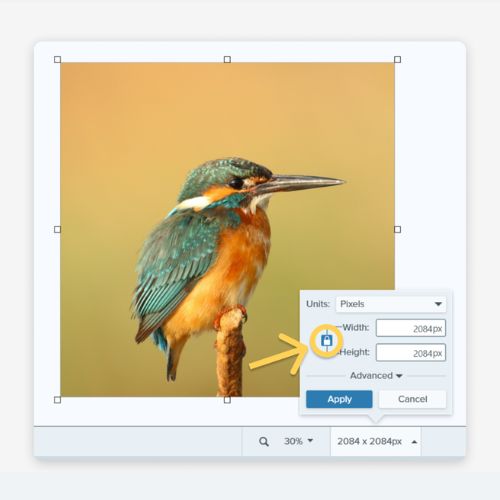
Resizing an image without preserving its aspect ratio can cause it to appear stretched or squashed, distorting objects and people. This is a common mistake that can significantly compromise a professional appearance.
3. Tools that Are Excessively Complex or Limited
Professional editing software is often expensive and complex to use. In contrast, many free online tools offer limited features and confusing controls, making the resizing process longer and more frustrating than necessary.
4. Format Limitations and Data Loss
Many online tools struggle with uncommon file formats or strip away essential metadata, such as camera details and copyright information, during image resizing. That’s why selecting a reliable and secure platform that maintains the file’s original integrity is so important.
An effective image resizing tool should offer ease of use, accurate control over dimensions and quality, and fast processing—delivering professional, high-quality results for any purpose.
Why Choose CapCut to Resize Images Online
CapCut has become one of the most popular online visual editing platforms, earning a strong reputation worldwide. While it is best known for its advanced video editing features, it also provides a powerful and user-friendly tool for resizing images online.
This dedicated feature blends simplicity, efficiency, and professional-quality results within one convenient and accessible platform.
1. Ease of Use and Immediate Access
The process is simple and user-friendly, with no need for downloads, complicated installations, or advanced design skills. CapCut runs directly in the browser, enabling users to resize images accurately in just a few clicks from any device connected to the internet.
2. Original Quality Preserved
One of the standout advantages of CapCut is its ability to maintain image quality during resizing. Its smart algorithm protects sharpness, color accuracy, and fine details, preventing pixelation or blurriness. As a result, both professional projects and personal memories remain clear, vibrant, and perfectly preserved.
3. Versatility in Formats and Applications
CapCut supports multiple image formats, including JPG, PNG, and WebP, and provides flexible dimension adjustments to suit different requirements. It’s ideal for casual users preparing photos for social media as well as professionals optimizing visuals for marketing campaigns, websites, or product catalogs.
4. Fast and Efficient Process
For users who prioritize efficiency, CapCut delivers impressive speed. Uploading images, adjusting width, height, or aspect ratio, and downloading the final file all happen seamlessly without delays, making it easy to fit into any workflow.
5. Integrated Creative Tools
With CapCut, resizing an image is only the first step. The platform also lets you edit, apply filters, and add text or graphic elements within the same workspace, streamlining the entire visual creation process in one convenient place.
How to Resize an Image Online with CapCut (Step by Step)
Resizing an image online with CapCut is quick and straightforward. Here’s how the process works:
Step 1: Access the Online Image Resizer
Open CapCut and go to the “New Image” option in your workspace.
Step 2: Send Your Image Securely and Quickly
Begin with a blank canvas, then drag and drop your image onto it or click to browse and upload the file from your computer, cloud storage, Google Drive, or Dropbox.
Step 3: Adjust Dimensions Precisely and with Full Control
CapCut offers multiple ways to resize an image online. You can enter specific width and height values, keep the Original Size, choose preset dimensions for Instagram or Facebook, or use Automatic Layout to resize images with AI. Additionally, you can explore other editing tools to enhance your image further.
Step 4: Export and Share
After resizing, preview the final result and then click “Download” to save the image for future use.
This user-friendly and complete workflow, paired with fast performance, secure handling, and high-quality results, makes CapCut the perfect choice for anyone looking to resize images online professionally, efficiently, and hassle-free.
How to Resize Images Without Losing Quality
A common concern when resizing images is maintaining their final quality. Fortunately, using the right tool and following best practices can prevent any loss of clarity or detail.
What Causes Loss of Quality?
- Excessive reductions
- Tools that apply automatic compression
- Repeated adjustments on the same image
How to Avoid this Problem?
CapCut employs advanced processing techniques to preserve visual sharpness, enabling image resizing without any loss of quality, even for the most precise adjustments.
Ideal Sizes for Resizing Images on Different Platforms
Resize Image for Social Media
Every social media platform has its own specifications. Properly resizing your image prevents unwanted cropping and enhances its visual impact.
- Instagram: square or vertical posts
- Facebook: horizontal images and banners
- TikTok: vertical formats
- YouTube: high-definition thumbnails
With CapCut, you can quickly adapt your images for each platform.
Who Can Benefit from Resizing Images with CapCut?
Image resizing is not exclusive to designers. Various profiles benefit from it:
- Digital content creators
- Marketing professionals
- Small entrepreneurs and e-commerce businesses
- Students and teachers
- Users who want convenience in their daily lives
For all of them, resizing an image online with CapCut is a practical and accessible solution.
CapCut vs. Other Online Image Resizing Tools
When evaluating various online image resizing tools, several key factors determine which platform provides the best overall experience. The most important include:
- Simple and Intuitive Interface: While many alternatives present overloaded dashboards or confusing options, CapCut offers a linear and focused workflow, designed so that anyone can complete the task in seconds.
- Superior Final Image Quality: Many online tools apply aggressive compression, resulting in loss of details. CapCut prioritizes algorithms that preserve sharpness and color fidelity, even after resizing.
- Immediate and Universal Access: Since it operates entirely in the browser, it eliminates the need for downloads, installations, or updates, being accessible from any device at any time.
- Free and Complete Resources: Many platforms limit essential functionalities (such as high resolution or watermark removal) in free versions. CapCut offers a robust set of resizing and basic editing tools at no cost.
Striking the perfect balance between user-friendliness, technical performance, and accessibility, CapCut stands out as a top choice for anyone looking to resize images quickly, reliably, and with professional-quality results.
Practical Tips for Resizing Images with Better Results
- Always maintain the image’s aspect ratio
- Choose the appropriate format (PNG or JPG)
- Avoid resizing the same image multiple times
- Think about the final destination before adjusting the size
These practices help maintain quality and visual impact.
Conclusion
In today’s digital world, knowing how to resize an image is essential. With CapCut, the process is simple, fast, and accessible, all while preserving visual quality.
Whether for social media, websites, or personal projects, resizing images online with CapCut offers a convenient and effective solution for achieving professional results.
Frequently Asked Questions
1. Can I use CapCut to resize images for free?
Absolutely! CapCut provides free tools that let you resize images quickly, without any cost or the need to install extra software.
2. Is the image quality maintained after resizing?
In most cases, yes. CapCut is designed to resize images while maintaining colors, sharpness, and fine details, ensuring they stay clear and free from pixelation or blurriness.
3. Do I need to install any software to use the tool?
No, everything runs entirely in the browser, with no downloads or installations required. You can resize images from any computer, tablet, or smartphone connected to the internet.
4. Is it possible to resize images on a cell phone or tablet?
Yes, CapCut is fully compatible with mobile devices, offering the same user-friendly experience as on desktop.
5. Which image formats can be resized?
The platform supports popular formats like JPG and PNG, making it easy to resize images for social media, websites, e-commerce, or any other digital project.